
Back to the Swimlane diagrams hub or the Visio Data Visualizer overview.
Update swimlane diagrams without redrawing
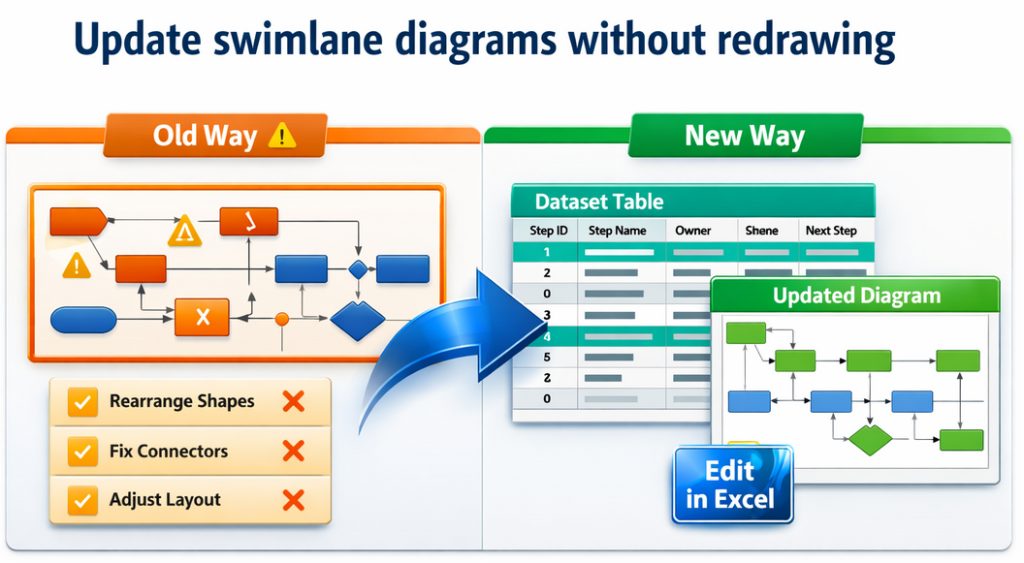
Swimlane diagrams go stale because every update becomes diagram surgery. The fix is simple: convert the process into a dataset once, update the dataset in Excel, and regenerate a clean diagram from data.
Format rules and import fixes: dataset format and import troubleshooting.
Why swimlane diagrams go stale
Three predictable failure modes show up in most organizations:
- Reality drifts – the process changes faster than the diagram can be updated.
- Maintenance becomes waste – shapes, connectors, alignment, formatting, rework.
- The map is a picture – hard to audit, hard to compare, hard to transform into new views.
If the intent is “get the diagram into Excel,” this page is the bridge: Visio diagram to Excel.
The dataset-first workflow
- Convert diagram to dataset. One time conversion into strict TSV (tab-separated values).
- Import once and confirm it renders. The first clean import proves the model.
- Make changes in Excel. Rows and IDs, not shapes and connectors.
- Re-import to refresh the diagram. The diagram becomes a view of the dataset.
A working dataset example: cross functional dataset example.
Common updates and the exact dataset edits
| Change request | What to edit in the dataset | Why it works |
|---|---|---|
| “This step belongs to a different team.” | Edit the Function cell for that row. | Swimlanes are controlled labels, not shape placement. |
| “We added an approval.” | Insert a new row (new Step ID). Update the prior step’s Next Step ID to point to the new step. | Connections are explicit, so the diagram updates cleanly. |
| “We need a rework loop.” | Point a step’s Next Step ID back to an earlier Step ID. | Loops are just graph logic in the dataset. |
| “This decision has 2 outcomes.” | Use comma-separated IDs in Next Step ID, no spaces (example: 040,050). | Branching stays in 1 row per step. |
| “We changed stages.” | Edit Phase values using a small consistent set (Intake, Review, Execute, Close). | Phases represent progression, not decoration. |
If Visio rejects the import, the cause is almost always in the dataset: import troubleshooting.
A lightweight governance loop that keeps diagrams trusted
Simple, realistic governance beats perfect governance that never happens.
- 1 canonical dataset (the source of truth)
- Controlled Function list (lane names do not drift)
- Stable Step IDs (never reused)
- Version naming that is obvious (date + version)
- Regenerate from data (never hand-fix the diagram after import)
When the model is data, audits and AI analysis become practical: audit in Excel and AI analysis.
More swimlane pages in this silo
Consistent CTA path: validate with Lite, then scale with Standard.
FAQ
Does this work for existing Visio swimlane diagrams?
Yes. The first step is converting the existing diagram into a dataset, then importing it into the Data Visualizer template so the diagram becomes refreshable from data.
What makes the update workflow reliable?
Stable Step IDs, controlled lane names (Function), and strict dataset rules. When the dataset is clean, re-importing regenerates a consistent diagram.
What is the fastest way to validate this without committing?
Use Lite on a real file to validate the workflow on the first 20 steps: Download Lite.
What is the difference between Lite and Standard?
Lite is free and exports the first 20 steps for workflow validation. Standard removes the limit and is designed for full-size conversions: Standard.
Microsoft, Visio, and Excel are trademarks of Microsoft. This site describes an independent tool and is not affiliated with Microsoft.





