
Part of the Visio Data Visualizer guide. For swimlanes, use the Swimlane diagrams hub.
Basic flowchart dataset example (Visio Data Visualizer)
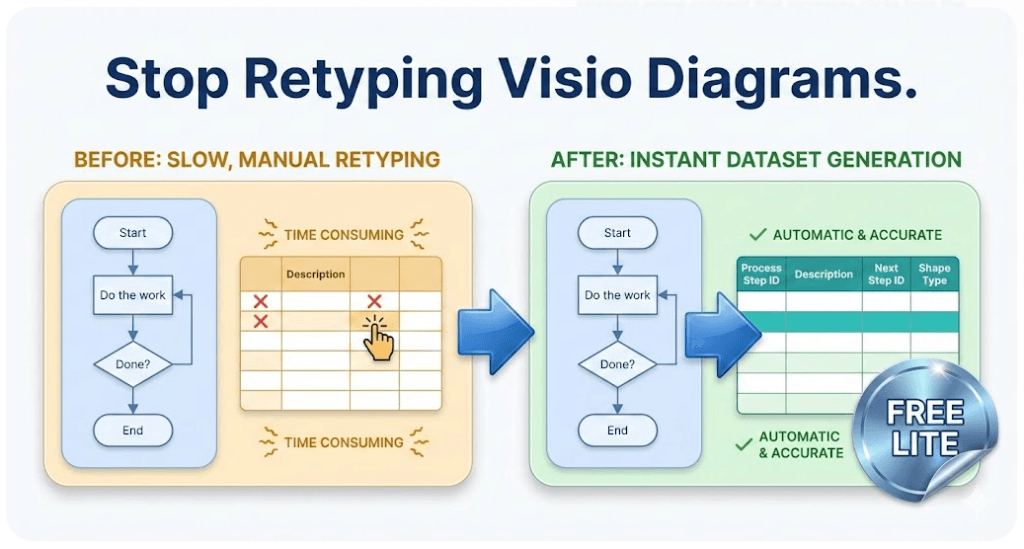
If Visio Data Visualizer keeps rejecting a dataset, start with a basic flowchart example that imports cleanly. This validates the core rules fast, then the rows can be adapted to a real workflow.
Strict rules and common errors: dataset format and import troubleshooting.
TSV dataset example (copy and import)
Copy the TSV below into a file named basic-flowchart-example.tsv. Use real tab characters between columns. Do not add blank lines.
Process Step ID        Process Step Description        Next Step ID        Connector Label        Shape Type
010        Start – Begin workflow        020                Start
020        Receive request        030                Process
030        Is request complete?        040,050                Decision
040        Request missing info        020                Process
050        Do the work        060                Process
060        End – Close                        End
Before importing: remove blank lines and confirm headers match exactly.
How to import into Visio Data Visualizer
- Open Visio and create a new Basic Flowchart (Data Visualizer).
- Choose the option to create the diagram from a data file.
- Select the TSV file created from the example above.
- Confirm the diagram renders cleanly (start, process steps, decision, loop, end).
- If Visio shows an error, fix the dataset and re-import.
Connector Label can be left blank, but it is useful for decisions (Yes/No, Approved/Rejected).
When to use basic flowchart vs swimlanes
Use a basic flowchart when:
- The workflow has 1 primary owner.
- The main goal is clarity of steps and branching.
- A quick dataset validation is needed before scaling up.
Move to swimlanes (cross functional flowcharts) when:
- Multiple teams own different steps.
- Handoffs and approvals are part of the problem.
- The diagram needs lanes (Function) and phases (Phase).
FAQ
What is a basic flowchart dataset?
It is a TSV table where each row represents a flowchart step. Next Step ID defines the connectors. Basic flowcharts do not require swimlanes or phases.
How is branching represented in the dataset?
A decision step lists multiple Next Step IDs in 1 cell as comma-separated values with no spaces, for example: 040,050.
What are the most common import failures?
Duplicate Step IDs, missing referenced Next Step IDs, invalid Shape Type values, and blank TSV rows. Use: import troubleshooting.
How can an existing .vsdx diagram be converted into a dataset quickly?
Validate with Lite first, then use Standard for full-size conversions: Download Lite and Standard.
Microsoft, Visio, and Excel are trademarks of Microsoft. This site describes an independent tool and is not affiliated with Microsoft.





