
Visio Diagram to Excel
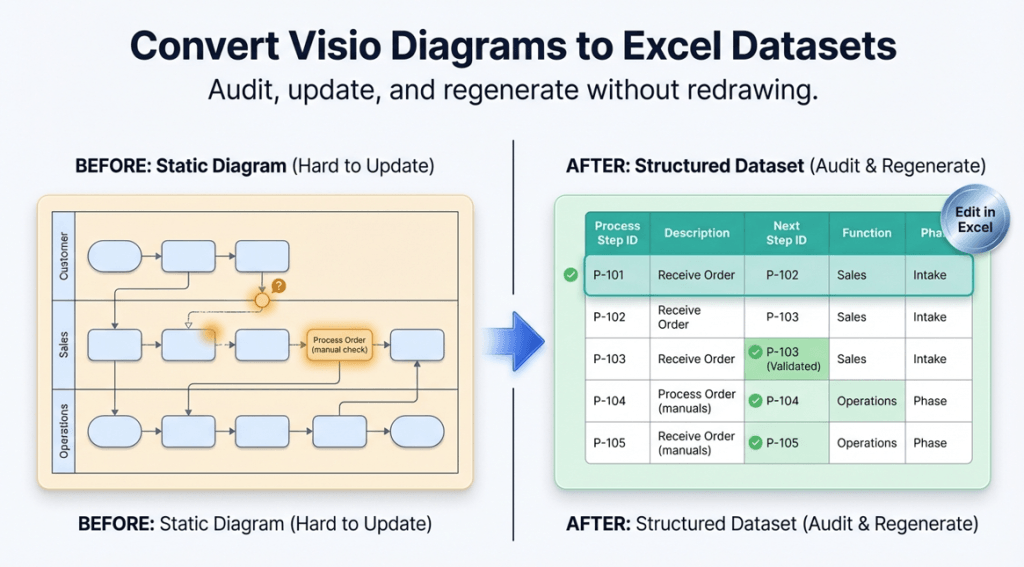
Most people don’t want a list of shapes. They want the process in Excel: steps, connections, ownership, branching, and loops—so it can be audited and kept current.
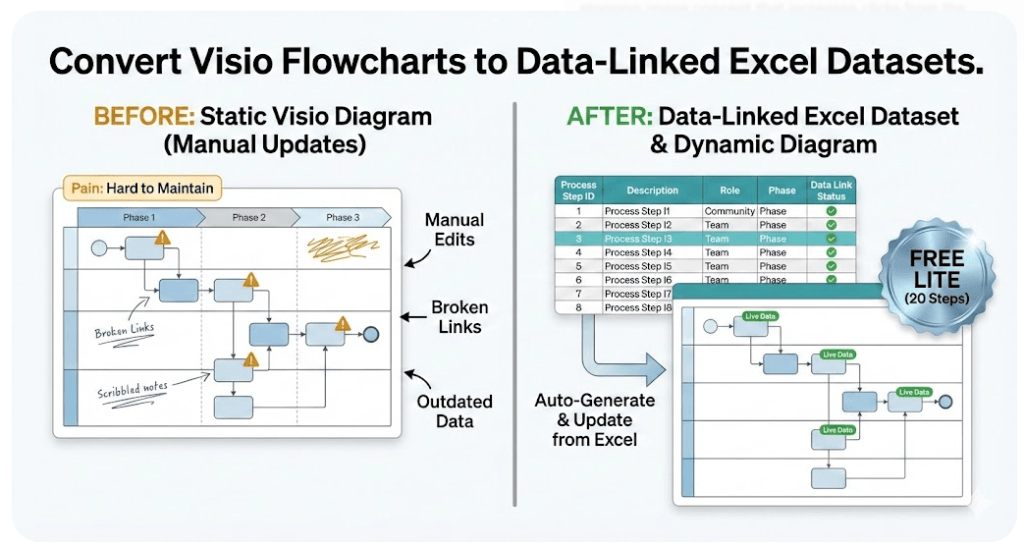
This page shows the dataset-first method: convert a .vsdx cross-functional flowchart (swimlanes) into an Excel-ready Data Visualizer dataset, then regenerate a clean, refreshable diagram.
Related pages: Dataset format · Import troubleshooting · Swimlane diagrams hub
What “Visio to Excel” usually means (3 intents)
“Convert a Visio diagram to Excel” is searched for three different reasons. Only one produces a maintainable process model.
| What’s desired | What Excel contains | Best for |
|---|---|---|
| Shape list | Shape text and properties (inventory) | Cataloging shapes, not process logic |
| Step table | Steps listed in a rough order | Simple linear flows |
| Process dataset (recommended) | IDs + connectors + ownership + branching | Audits, updates, analysis, and regeneration |
Key idea: a process is not just boxes. The process is the connections (Next Step IDs), the branches, the loops, and the ownership (lanes).
The best outcome: a true process dataset
A true process dataset is still simple. Each step is a row with fields like:
- Process Step ID (stable ID)
- Process Step Description (short action)
- Next Step ID (connections and branching)
- Shape Type (Start / Process / Decision / End)
- Function (lane owner: role/team/department/system)
- Phase (optional stage/column grouping)
Templates and examples (import-first):
Cross functional dataset example
Branches, loops, approvals, and patterns that import cleanly.
Open examplesHow to convert a Visio diagram to an Excel dataset (step-by-step)
- Pick the right diagram. Best fit is a cross-functional flowchart (swimlanes + phases) where ownership and stage matter.
- Export the dataset. Generate a Data Visualizer-ready Excel table from your .vsdx so the process can be audited and edited in Excel.
- Run quick checks in Excel. Validate IDs, next-step links, decision branching, lane values, and phase values.
- Import into Data Visualizer. Generate a linked diagram from the dataset so it can be refreshed as the process changes.
Fastest validation path: use Lite (Free, 20 steps) to prove conversion on a real file, then use Standard for full-size diagrams.
Excel checks (quick validation)
- Duplicate ID check: ensure every Process Step ID is unique.
- Broken reference check: ensure every Next Step ID points to a real Process Step ID.
- Branching format check: multiple next steps are stored as 070,080 (no spaces).
- Lane/phase normalization check: scan Function and Phase for near-duplicates.
If import fails, use: import troubleshooting.
What to do next (audit, update, regenerate)
Once the process is in Excel as a dataset, the work becomes faster and more reliable:
- Audit: filter steps, list approvals, count handoffs, flag rework loops.
- Update: change ownership by editing the Function cell (instead of moving shapes).
- Regenerate: re-import the dataset into Data Visualizer to refresh the diagram view.
For audit workflows: Audit a Visio process map in Excel
FAQ
Will “Visio to Excel” give a real process model?
Only if Excel captures connections and branching (Next Step IDs) and ownership (Function). A simple shape inventory is not enough for process analysis.
What Visio diagrams work best for this workflow?
Cross-functional flowcharts (swimlane diagrams) work best because lanes (Function) and stages (Phase) map cleanly to the dataset format.
Does this overwrite the original Visio diagram?
No. The dataset is exported and used to generate a new Data Visualizer diagram linked to the data. The original file can remain unchanged.
What should be checked first in Excel?
Validate unique step IDs and valid Next Step references first. Those two checks prevent most downstream failures.
What’s the fastest way to prove it works before upgrading?
Use Lite (Free, 20 steps) to run the workflow end-to-end on a real diagram, then upgrade only if the import and dataset structure fit.
Fast path: prove it with Lite, then convert full maps with Standard.
Microsoft, Visio, and Excel are trademarks of Microsoft. This is an independent tool and is not affiliated with Microsoft.





